
Key Takeaways
- You can check devices connected to your Google account in about two minutes from the Security page
- Every phone, laptop and tablet that signed in shows up in one list
- If one looks unfamiliar, sign it out and change your password
- Looking at this list once a month is enough for most people
Why Should You Check Devices Connected to Your Google Account?
Most of us sign into Google and never think about it again. An old laptop, a work computer, a friend’s tablet or that hotel computer from two summers ago. They all stay connected until somebody removes them and nobody does.
The thing is your Google account is not just Gmail. It has your photos, your files, your contacts and a lot of saved passwords. Sometimes payment details too. If a device you forgot about is still in there, it has the same access you do.
People usually check after something goes wrong like a weird sign in alert or a friend asking why you sent a strange email. Checking before that takes two minutes. So it makes sense to do it now.
How Do You Check Devices Connected to Your Google Account on a Computer
Computers are the easiest way because everything is laid out bigger on the screen.
- Go to myaccount.google.com and sign in if it asks
- Click Security on the left side
- Scroll down to Your devices
- Click Manage all devices
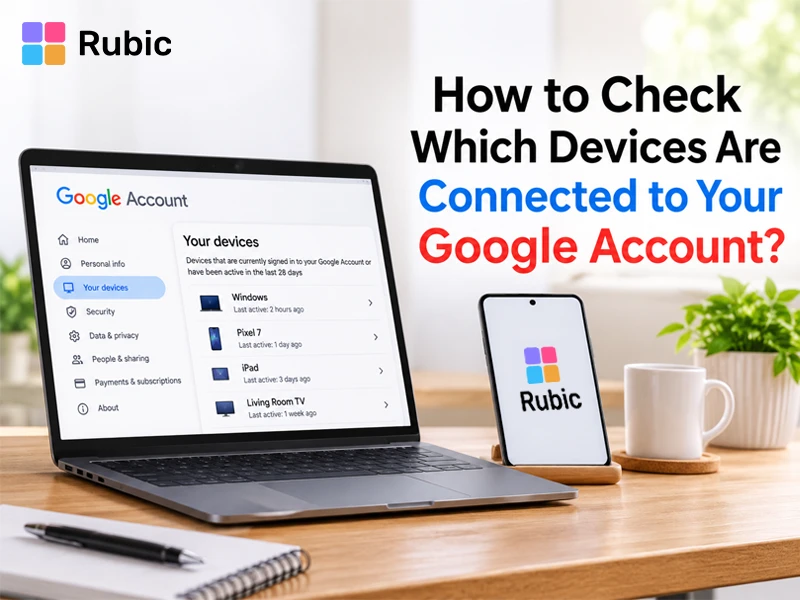
Now you can see every device that is signed in. Each one has a name, a rough location and the last time it was active. A few also show the browser or app that was used.
Google moves things around once in a while so the names might be a bit different for you. Just look for Security and then the devices part and you will find it.
How Do You Check Devices Connected to Your Google Account on Android?
If you are on an Android phone you can do it in a few taps without even opening a browser.
- Open Settings on your phone
- Tap Google
- Tap Manage your Google Account
- Swipe over to the Security tab
- Scroll down to Your devices and tap Manage all devices
Another way is to open the Gmail app, tap your profile picture in the top corner and tap Manage your Google Account. From there you land in the same place.
How Do You Check Devices Connected to Your Google Account on an iPhone?
Apple phones do not have Google settings built in so you will use an app or the browser.
- Open the Gmail app or the Google app
- Tap your profile picture at the top
- Tap Manage your Google Account
- Go to the Security tab
- Scroll to Your devices and tap Manage all devices
If you do not have either app you can just open Safari and go to myaccount.google.com. It works the same way.
What Does the Device List Show?
Each device on the list comes with a name, a location, a last active time and sometimes the browser or app it used. The name tells you which phone or laptop it is. The last active time tells you if it was used today or months ago.
Location is the one that confuses people. It is based on the internet connection and not GPS so it can show a city near you instead of your own. A slightly wrong city is normal. A different country is not.
What Should You Look For in the List?
Go down the list slowly. You are looking for anything that makes you stop and think.
A device you have never owned is the obvious one. Same for a place you have never been to. But also look for the boring stuff like the phone you sold last year or the computer from your old job. They do not look dangerous but they still have access to your account so they should go.
Time matters too. If something was active at 3 in the morning and you were asleep, that is worth a second look. And if you ever signed in on a school computer, a cafe laptop or a relative’s PC, check if it is still sitting there.
How Do You Remove a Device From Your Google Account?
This part is simple too. Once you are on the Manage all devices page do this.
- Click the device you want to remove
- Click Sign out
- Confirm when it asks you
The device is signed out of your account. Whoever is using it will have to sign in again with your password. If it was someone who should not be there then they will not be able to without it.
If you want to clear everything out you can do this for each device on the list and then sign back in only on the ones you use every day. It sounds like a lot but it takes a couple of minutes.
One more thing. Some devices that use your account for apps in the background might sign back in if they still have your password saved. That is why changing your password after a sign out matters. More on that below.
What Should You Do If You Find a Device You Do Not Recognize
First, sign it out. Do not spend time wondering whose it is.
After that change your password. Pick something you have never used anywhere else. A few random words strung together is better than a short password full of symbols and much easier to remember.
Then turn on 2 step verification if it is not on already. It sends a code to your phone every time someone tries to sign in from a new place so a stolen password alone is not enough.
Google also has a Security Checkup on the same Security page. It goes through your devices, your recovery phone number and email and the apps that can reach your account. Take a look at the recovery details in particular. If someone changed them, that is how they get back in later.
And scroll down to recent security activity. It shows things like new sign-ins and password changes so you can see if anything else happened while you were not looking.
What About Apps and Websites Connected to Your Account?
Devices are only half of it. Every time you tapped Sign in with Google on some shopping site or a game, that site got linked to your account. And it stays linked until you cut it off.
On the Security page there is a section for third party apps and services with account access. Open it and read through the list. Most people find a few they forgot about. If you do not use one anymore then remove it.
How Can You Check Your Gmail Sign In Activity?
If you mostly care about Gmail there is a faster way. Open Gmail on a computer and scroll to the very bottom of the inbox. In the bottom right corner you will see Last account activity with a time next to it. Click Details.
A small window opens with recent sign ins, where they came from and what was used. There is also a button to sign out of all other web sessions which is really useful if you ever forgot to log out on a public computer.
How Often Should You Check Your Google Account Devices?
Once a month is plenty. Put a reminder on your phone if you tend to forget because it only takes a minute once you know where to click.
There are a few times when you should not wait for the month to end. After a trip where you used a hotel or airport computer. After you sell, trade in or give away a phone. After Google emails you about a sign in that you do not remember. And after any news about a site you use getting hacked.
Simple Habits That Keep Your Account Safer
None of this is hard. Use a strong password that you do not reuse. Turn on 2 step verification. Sign out on shared computers every time even when you are rushing. Keep your phone updated because updates fix the holes that people try to use.
And be careful with emails asking you to sign in. Fake login pages are a very common trick. If something looks off, skip the link and type the website in yourself.
FAQs
- How do I see which devices are using my Google account?
Open myaccount.google.com and go to Security. Scroll down to Your devices and hit Manage all devices. Everything that is signed in will be there. On your phone you can get to the same page from the Gmail app by tapping your profile picture and choosing Manage your Google Account.
- Can someone use my Google account without me knowing?
They can if they have your password or if you forgot to sign out on a device they can get to. Looking at your device list once in a while helps you catch it early. See something weird and you should sign it out and change your password the same day.
- Does signing out of a device delete my data from it?
It does not. All it does is disconnect that device from your Google account. Things saved on the device itself like your downloads will still be on it. And if you lost the device you can try finding or locking it from the Security page.
- Will changing my password sign me out everywhere?
Mostly yes. You will have to sign in again on your other devices with the new password. That is actually good if you found something odd because it kicks out anyone who should not be there.
- How do I check Google account devices if I lost my phone?
Use any other phone or computer. Sign in to your account, go to Security and open Your devices. Find the lost phone and sign it out. You can also use the find my device option from there to see where it is or lock it.
Make It a Habit
Checking which devices are connected to your Google account takes a couple of minutes and it works on any phone or computer. You get to see exactly who has the keys to your account and take them back if needed. Do it once a month, remove anything you do not use and turn on 2 step verification if you have not yet. Your emails, photos and files will be a lot safer for it.