
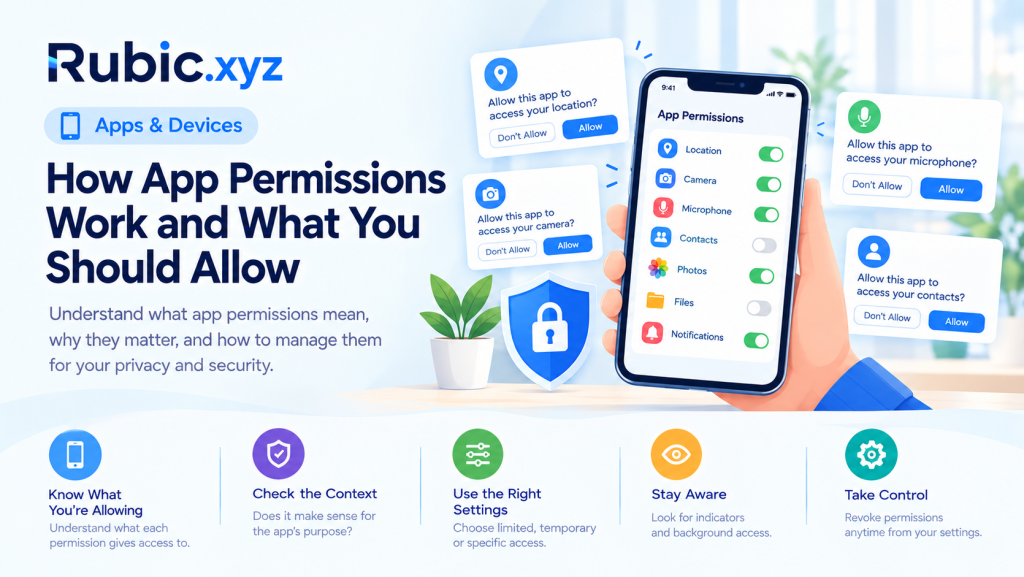
Most apps ask for something on your phone at some point — camera, microphone, contacts, location, photos, files. It’s easy to just tap Allow and move on, especially when a setup screen won’t let you pass otherwise. But that tap decides what the app can reach, when and sometimes how much of your personal information it walks away with.
After learning how app permissions work, those notifications cease to feel like a mere formality. Instead, you begin to evaluate what an app is really requesting permission to do and the reasons behind the request, as well as if it needs this access after the activity has ended.
Why App Permissions Matter
An app permission is a control built into the operating system that governs whether an app can use a specific device feature or pull certain information. On current versions of Android and iOS, most sensitive permissions get requested on the spot, when they’re needed, instead of all at once during install.
That setup gives you a natural place to pause. A weather app wanting your location for a local forecast is reasonable. A calculator wanting your microphone or your contacts isn’t. The question worth asking every time is simply whether the request fits what the app is for.
Permissions Are Not All the Same
Some permissions just expose information. Others switch on hardware or let the app take action outright. And how risky any of them are can depend heavily on the situation.
| Permission | What it can provide access to | Questions to ask |
| Location | Current or approximate location | Does the feature genuinely need it? |
| Camera | Camera and image capture | Is camera access required for the main feature? |
| Microphone | Audio input | Does the app need recording or voice features? |
| Contacts | Saved names, numbers and related data | Why would this app need my address book? |
| Photos | Selected or broader photo-library access | Can I share only specific images instead? |
| Files | Documents and other stored data | Does the app need storage access to perform its job? |
| Notifications | Ability to send alerts | Are these alerts useful enough to keep enabled? |
App Permissions Explained
Permission approved; phone will now remember this permission and enforce the rules associated with it. Android and iOS don’t handle this identically and both change the details with nearly every major release.
A lot of permissions only stay active while you’re using the app — close it and the access closes too. Others give you a middle setting: approximate location instead of exact, a few chosen photos instead of the whole library, one-time access that expires the second you leave the app. Small distinctions like these limit what the app actually sees, without making you give up the feature.
And none of it is set in stone. You can walk back a permission any time from your settings, which is reason enough to check in on them occasionally instead of forgetting they exist.
How App Permissions Work in Real Use
Permissions usually surface the moment an app tries to touch something protected — a navigation app asking for your location right as you start a route, a messaging app asking for the mic the second you hit record on a voice clip.
The phone acts as the gatekeeper itself. The application may request access, but it will be the phone that allows it. Decline and your application will continue to work normally, but without any functionality that depends on that particular permission.
Saying yes doesn’t hand over unlimited access, either. The platform can still cap what happens next, show an indicator whenever the camera or mic turns on or keep background use behind its own separate switch.
Look at Context, Not Just the Permission Name
Weigh a permission against whatever triggered it:
- A video-calling app wanting camera and mic access checks out — that’s the whole point of the app.
- A photo editor wanting your selected pictures is probably just trying to let you edit what you picked.
- A flashlight app wanting your contacts or microphone doesn’t add up and it’s worth asking why.
- A shopping app wanting to send notifications can be useful for order updates, though that’s not the same thing as wanting to send you deals every day.
None of this proves a request is safe. It just gives you something to reason from instead of guessing.
What App Permissions Should I Allow?
There is no universal checklist which will suit everyone. This depends on the application, the particular feature and how much you are willing to compromise on that in order to access it. Before approving any such requests, it makes sense to ask:
- Does the feature actually need it? Check whether the main function of the app depends on this permission or just benefits from it.
- Is the timing reasonable? A request that shows up when you tap a related feature is easier to trust than one fired off the moment you open the app.
- Is there a lighter option? Selected photos, approximate location, one-time access or while-in-use are often available instead of full access.
- What happens if I refuse? If the app continues functioning normally, then you most likely did not have to agree.
- Can I change my mind later? Confirm the setting isn’t locked in.
These questions are enough to turn a vague privacy call into something concrete.
Check Permissions Before Installing an App
The prompt shown upon installation is only half the story. The other half comes from the app’s store listing, the privacy statement, the developer’s information and user reviews, all before installation begins.
Check whether there is a correlation between the permissions asked by the application and its capabilities. For example, it is reasonable that the application for taking notes should ask for permissions related to photos. However, if an app requests five types of permissions which have no connection to the actual functionality, it is cause for further investigation.
One also needs to pay attention to who developed the application and whether it is maintained. Neither alone proves the safety of an app, but taken together they point to the next step.
Review Existing Permissions Regularly
Permissions have a tendency to linger much longer than they are needed. Permissions such as location permissions that you grant to a trip planner app can continue to linger even after you stop using the app six months from now. Permissions can also be used by apps differently in an update after being granted long ago. A quick fix solves this problem:
Quick Permission Review
- Open your phone’s privacy or permission settings.
- Go through the sensitive categories — location, camera, microphone, contacts, photos, files.
- Check which apps still have access and whether that still makes sense.
- Switch broad permissions to narrower ones where the option exists.
- Remove access from anything you’ve stopped using.
- Watch especially for background location or anything else running outside active use.
Although menus vary according to the type of phone and manufacture of the device, the aim remains the same: Permissions must match your current usage, not your usage one year ago.
Common Permission Mistakes to Avoid
Permission issues arise not out of negligence but due to the desire for fast approval. The app won’t be progressed further, so users press Allow without giving much thought. Some things that should be stopped:
- Clicking through every permission at setup without reading the request.
- Assuming a popular or familiar app deserves whatever it asks for.
- Leaving access on long after the feature that needed it stopped being used.
- Treating notifications as if they’re the same thing as data-exposing permissions.
- Ignoring an odd request just because the app has decent ratings.
- Assuming a permission is permanent when there’s a setting right there to undo it.
Catching even a couple of these during a quick review keeps old, unnecessary access from piling up.
Permissions, Privacy and App Functionality
Privacy and convenience pull in opposite directions here. Deny everything and some apps stop working the way they’re supposed to. Approve everything and you’ve given away more than most apps ever needed in the first place.
The middle ground is granting only as much as the feature requires. If an app lets you pick specific photos, there’s little reason to hand over the whole library. If location only matters while you’re navigating, a setting that blocks background tracking usually covers what you actually need.
In practice, that’s what app permissions explained really comes down to — not refusing every request out of principle, but understanding how the access connects to the feature and to what you’re comfortable sharing.
Simple Checklist Before You Tap Allow
Go through this whenever a permission you don’t expect comes up:
- What am I actually trying to do right now?
- What does this permission expose — information, hardware or both?
- Does that access directly support the feature I want?
- Is a more limited version of this permission available?
- Does the app need this constantly or just once?
- Can this be changed later if I want to?
- Would I be happy with that sort of access sitting around for six months?
Final Thoughts
Knowing how app permissions work is not about rote learning. It is about giving yourself a pause instead of clicking the prompt out of reflex. App permissions signal the point where the power of an app stops and where your operating system starts. And the operating system furnishes the means of giving, withholding and revoking such permission.
When that request pops up next time, don’t view it as just another formality to be ticked off. Look into the request and identify which feature it is related to. Select the most restricted permission possible and review your existing permissions from time to time. Do it several times and the question “what app permissions should I allow” will no longer stay unanswered.